![Pragma-logo-white-RGB.png]](https://help.wearepragma.co.uk/hs-fs/hubfs/Pragma-logo-white-RGB.png?height=40&name=Pragma-logo-white-RGB.png)
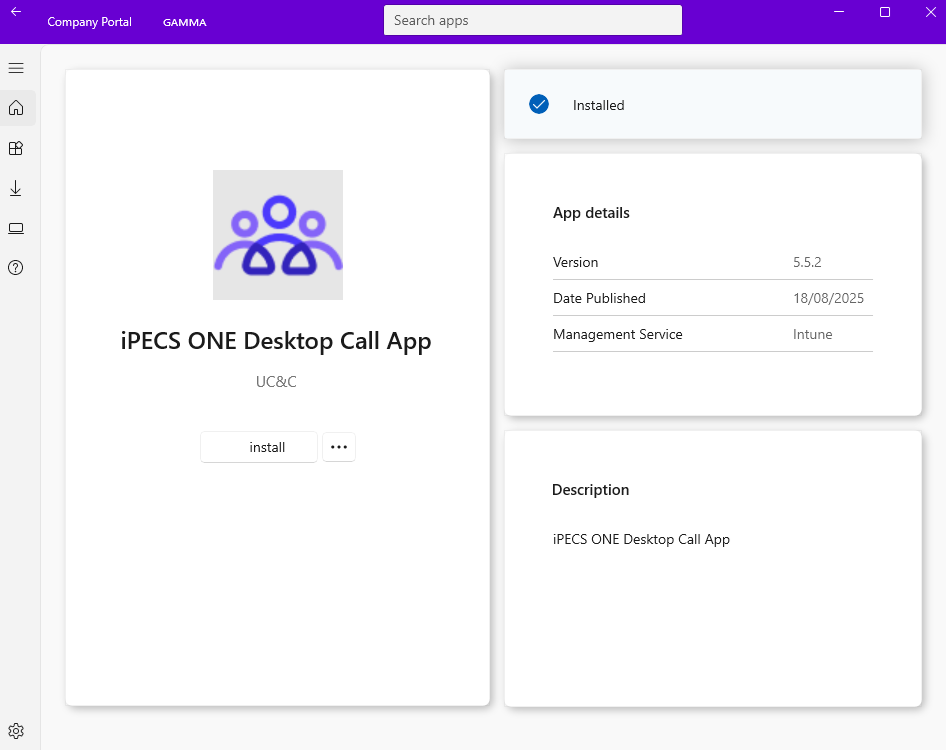
- Step one is downloading the iPECS ONE Desktop Call App from the Gamma Company portal.
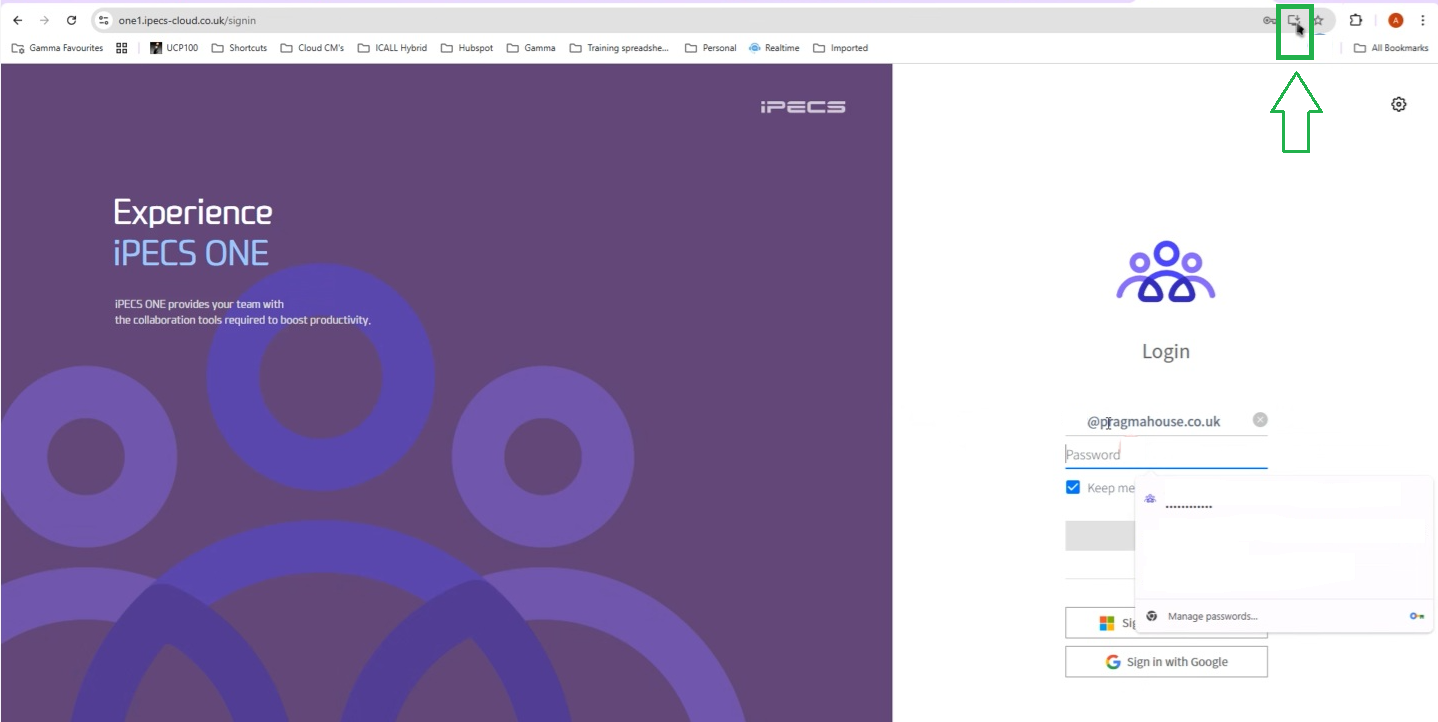
- Step two is to download the iPECS ONE using this URL: https://one1.ipecs-cloud.co.uk/signin. Then, click on the download highlighted in the green box in the following image.
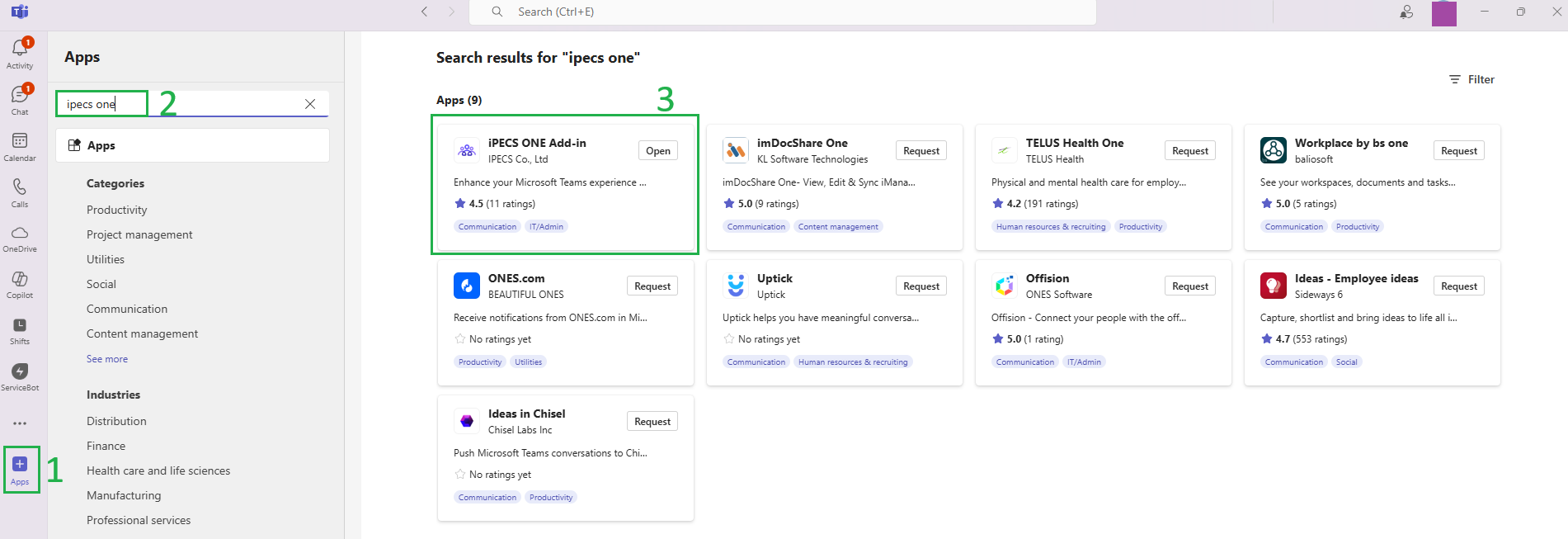
- In step three, open Teams and follow points 1, 2, and 3 to install iPECS ONE in Teams, as shown in the following image, highlighted in green.
As can be seen in point 1, you will be prompted to download the Desktop Call App. Please wait for step two, which says "Couldn't download—No permissions," as seen in step 2.
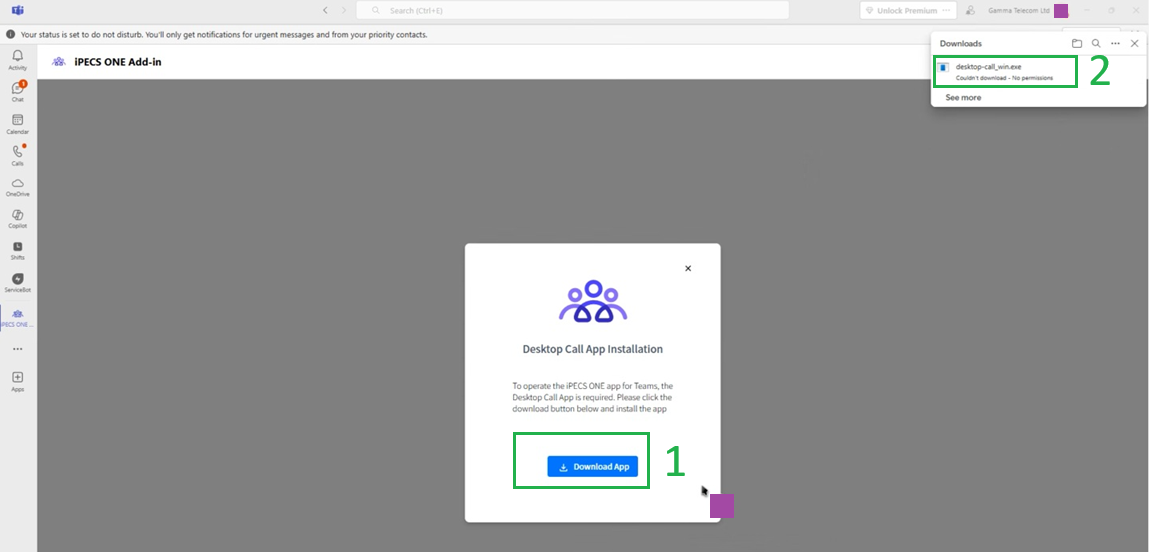
- You will need to cancel the download by clicking on the X in the Download App box once it fails, and then log in to iPECS ONE from the iPECS ONE App on the left-hand side of the screen in Teams. Please don't forget to ensure you have added the iPECS ONE URL - https://one1.ipecs-cloud.co.uk and sign into IPECS ONE. The image below, highlighted in the green box, says ''Desktop Call App is not installed, please download and install the app''
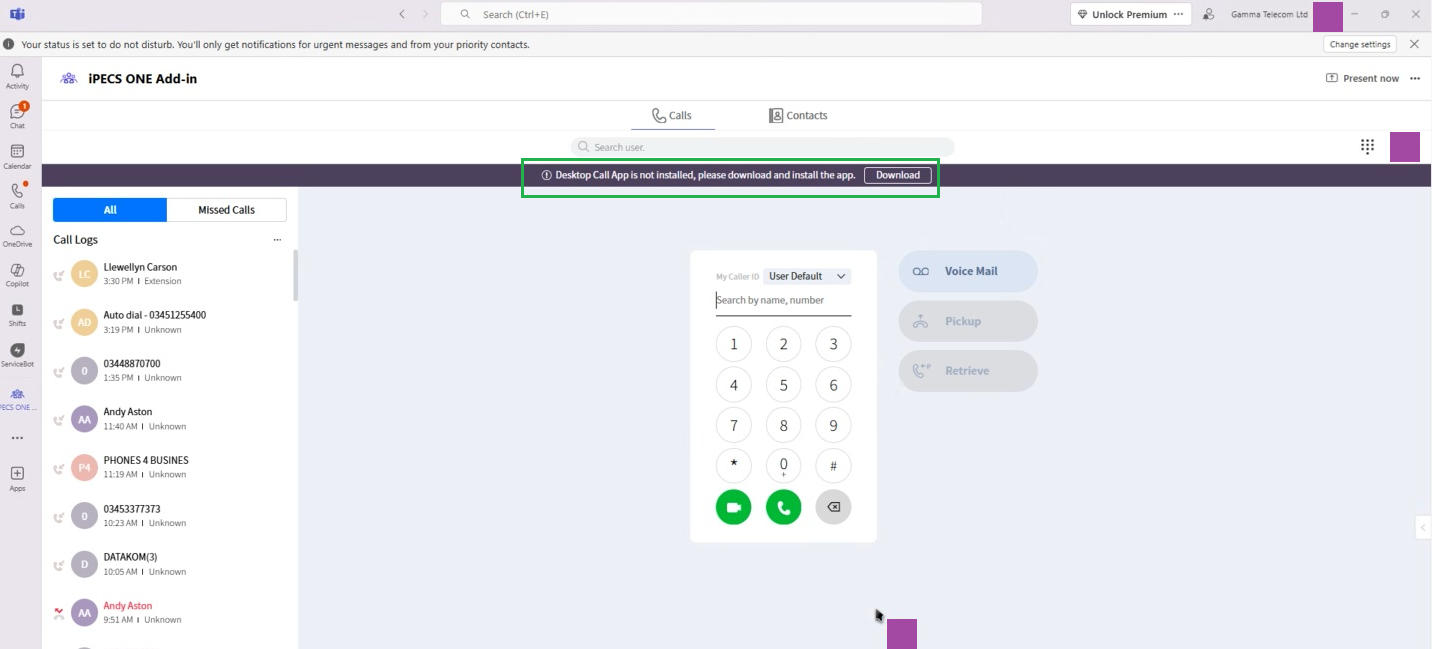
- In this step, you'll need to search for iPECS ONE, as shown in point one on the following image. In point two, you need to click on the application and open it. The application will automatically run when you click on it.
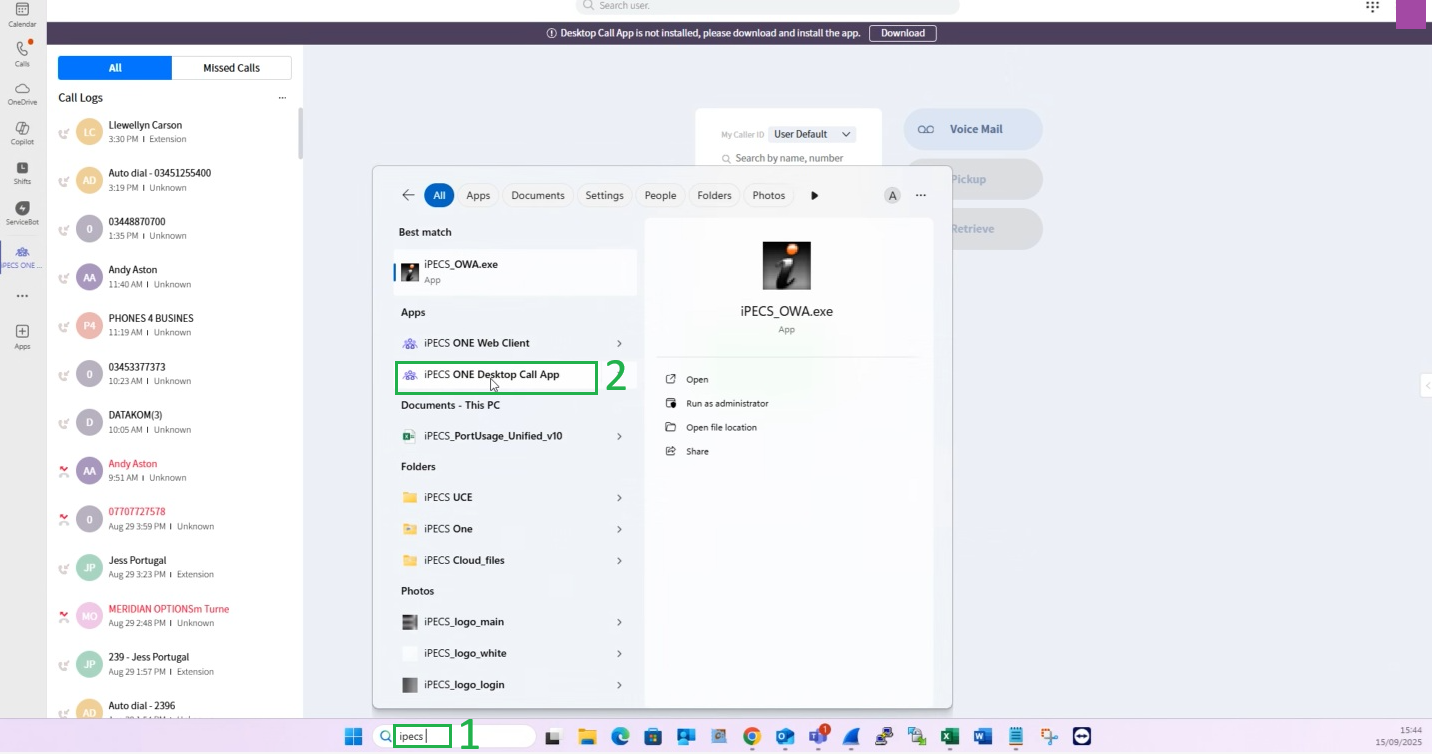
- Once you have completed this step, the message "Desktop Call App is not installed, please download and install the app'' will disappear, and iPECS ONE will now work in Teams.